
Hosted Authentication
Learn how to let your users authenticate to their accounts from your application using the Hosted Auth wizard.
To let your users authenticate to their accounts from your applications:
- Create a route that users will visit to link a new account.
- Create a callback route where your users will be redirected after their authentication.
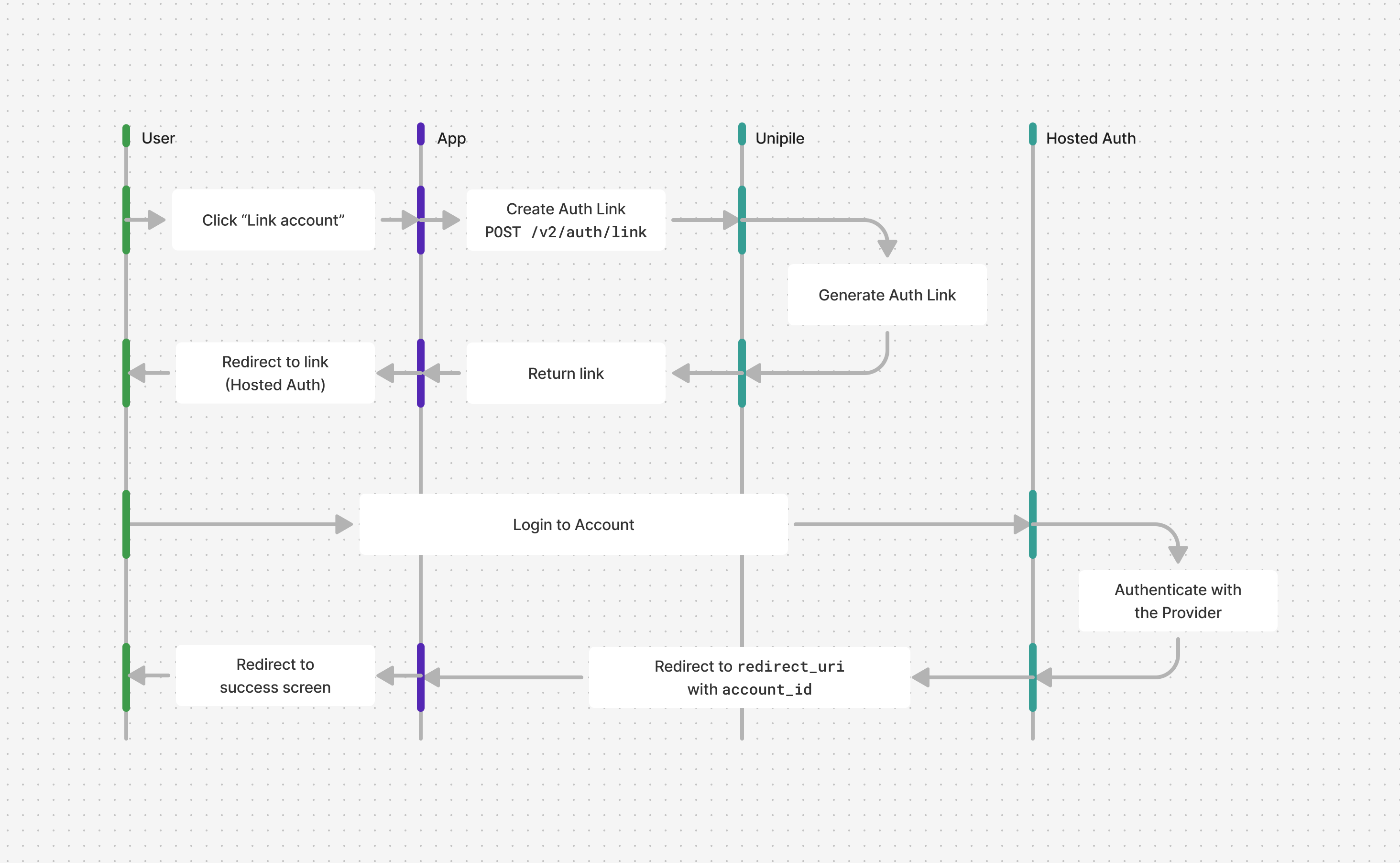
Create Auth Link and redirect
To configure and share a link manually before implementing this backend flow, use Advanced Authentication in the Dashboard.
Create a new route that can accept GET requests. This is where users should go if they want to link or reconnect an account.
The request body has two distinct variants:
| Link a new account | Reconnect an existing account |
|---|---|
Include providers | Include account_id |
Do not include account_id | Do not include providers |
Do not combine these fields:
providersandaccount_idbelong to two different payload variants. Useproviderswhen linking a new account, oraccount_idwhen reconnecting an existing one.
Use a future expires_on timestamp appropriate for your session when running the cURL examples. The SDK examples create a link that expires in ten minutes.
Link a new account
In this example:
- It calls Create Auth Link using the
@unipile/sdkpackage. Keep the API key on your server. The required parameters are:- The
providersallowed to be linked. - The link session
expires_ondate (links have a limited lifetime). - The
redirect_uriwhere the user returns after authentication.
- The
- Your route redirects the user to
data.link, the generated URL pointing to Unipile's Hosted Auth wizard. The later SDK examples reusehosted_authandrequest_optionsfrom this setup.
import { UnipileHostedAuth } from '@unipile/sdk';

const hosted_auth = new UnipileHostedAuth();
const request_options = {
  baseUrl: 'https://api.unipile.com',
  headers: { 'X-API-KEY': 'YOUR_ACCOUNT_API_KEY' },
};

// In your server's /link-account route:
const { data } = await hosted_auth.createAuthLink({
  ...request_options,
  throwOnError: true,
  body: {
    providers: '*',
    expires_on: new Date(Date.now() + 10 * 60_000).toISOString(),
    redirect_uri: 'https://myapp.com/link-account/callback',
  },
});

// Redirect the browser to data.link using your web framework.curl --request POST \
--url https://api.unipile.com/v2/auth/link \
--header 'X-API-KEY: api-key' \
--header 'accept: application/json' \
--header 'content-type: application/json' \
--data '
{
"providers": "*",
"redirect_uri": "https://myapp.com/link-account/callback",
"expires_on": "2027-01-01T00:00:00.000Z"
}
'Reconnect an existing account
To reconnect or reconfigure an Account, send its Unipile account_id and omit providers.
const { data } = await hosted_auth.createAuthLink({
  ...request_options,
  throwOnError: true,
  body: {
    account_id: 'acc_123456789',
    expires_on: new Date(Date.now() + 10 * 60_000).toISOString(),
    redirect_uri: 'https://myapp.com/link-account/callback',
  },
});

// Redirect the browser to data.link.curl --request POST \
--url https://api.unipile.com/v2/auth/link \
--header 'X-API-KEY: api-key' \
--header 'accept: application/json' \
--header 'content-type: application/json' \
--data '
{
"account_id": "acc_123456789",
"redirect_uri": "https://myapp.com/link-account/callback",
"expires_on": "2027-01-01T00:00:00.000Z"
}
'Choose providers for a new account
Provider values are case-sensitive. Individual provider names are lowercase only; historical uppercase values such as LINKEDIN or WHATSAPP are invalid in V2. Wildcard category selectors are exceptions and must use the exact uppercase suffix shown below.
| Value | Hosted Auth selection |
|---|---|
* | All providers |
*:EMAILS | Providers supporting the Emails API |
*:CALENDAR | Providers supporting the Calendar API |
*:MESSAGING | Providers supporting the Messaging API |
*:SOCIAL | Providers supporting the Social APIs |
linkedin, whatsapp, google, outlook, imap, telegram, instagram, mock | One specific provider |
You can pass one selector as a string, or an array of lowercase provider names when you want to offer a specific set:
{
  "providers": ["linkedin", "whatsapp"]
}
Handle the callback
Create a route that accepts GET requests at the redirect_uri supplied when generating the link. In the example below, callback_url is the complete incoming callback URL supplied by your web framework. Reuse the server-side request_options from link creation, and associate the result with the user who started the flow.
import { UnipileAccounts } from '@unipile/sdk';

const accounts = new UnipileAccounts();

// In your server's callback route, construct callback_url from the request URL.
const callback = new URL(callback_url);
const error_type = callback.searchParams.get('error_type');

if (error_type) {
  // Handle the failure in your application; do not treat it as a successful link.
  throw new Error(error_type);
}

const account_id = callback.searchParams.get('account_id');
if (!account_id) throw new Error('Missing account_id');

const { data: account } = await accounts.getAccount({
  ...request_options,
  throwOnError: true,
  path: { account_id },
});

// Persist account.id, account.user_id, account.provider, account.name,
// and account.status for the user associated with this authentication flow.
On success, treat the callback query as a pointer to the Account, not as the complete source of truth:
- Read
account_idfrom the callback query. - Call
GET /v2/accounts/{account_id}(Get an Account) with the same API Key that created the Hosted Auth link. - Store
id,user_id,provider,name, andstatusfrom the returned Account.
Fetching the Account directly avoids ambiguity from list pagination and from several authentication flows completing at the same time.
Successful link
If the account was successfully linked, the following parameters are given in the query:
| key | description |
|---|---|
account_id | ID of the linked account |
provider | Provider of the linked account |
state? | (Optional) State given as parameter on link generation |
Handle errors
Errors addressed to the Account owner like "Invalid credentials" are handled and displayed inside the Hosted Auth.
But if a critical error that requires the generation of a new link occur during the authentication process, the error is given as parameters in the query:
| key | description |
|---|---|
error_type | Type of the error. See Error responses |
error_title | Title of the error |
error_detail | Detail of the error |
As mentioned in Accounts Linking Limitations, you should handle Duplicate and Restricted Accounts errors here.
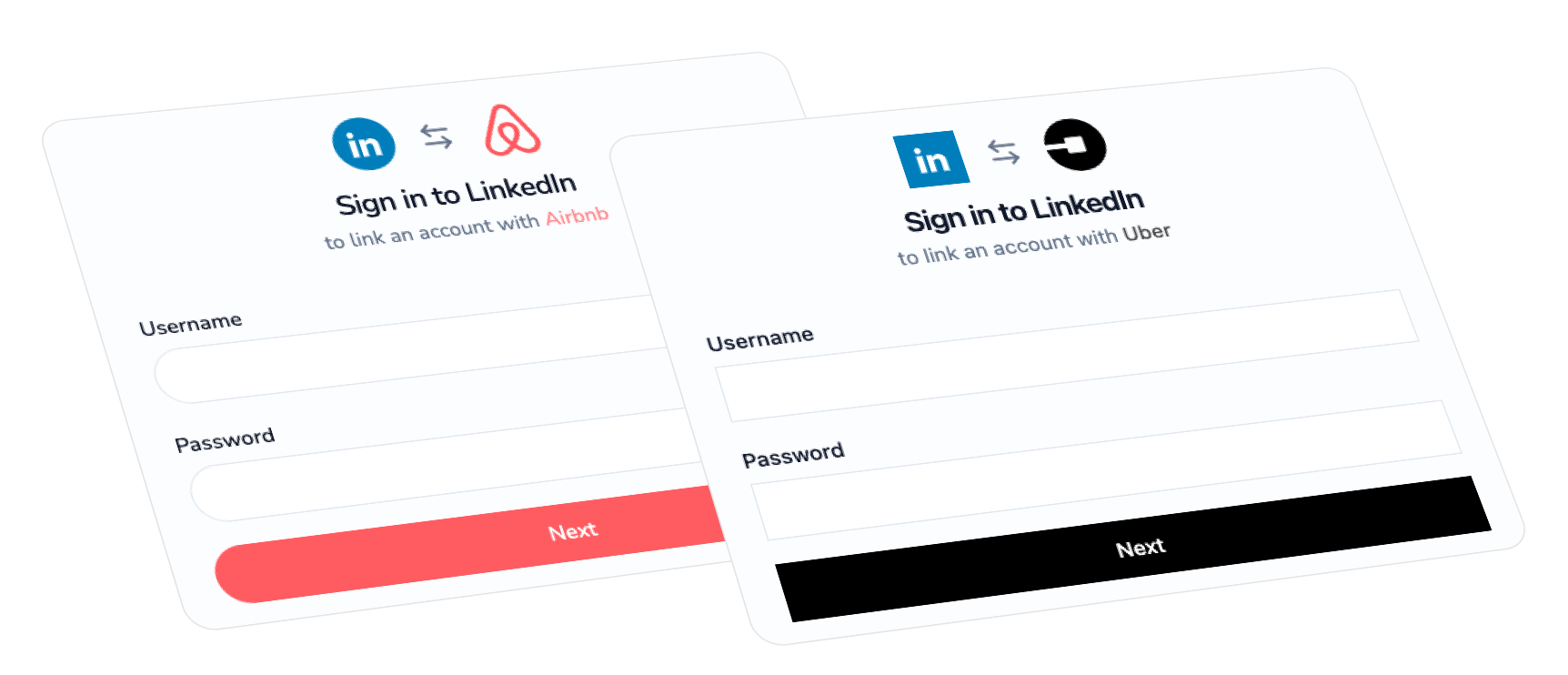
Customise appearance & branding
The Hosted Auth Wizard is pretty neutral to accommodate every app, but you can customise its appearance from Configuration → Hosted auth in the Dashboard. See Hosted Auth Settings for the branding fields, preview, informational consent scopes, and footer links. Consent scopes shown in the wizard do not restrict API access.
Configure proxy & location
You can use a custom proxy or a custom country on an automatic proxy as mentioned in the Proxy guide by giving an individual configuration for each provider. Automatic proxy protection currently applies to LinkedIn, WhatsApp, Instagram.
config.{provider}.custom_proxyto specify the configuration of a proxy to be used for accounts of the given providerconfig.{provider}.auto_proxy_configto specify the configuration of the automatic proxy assigned for accounts of the given provider, if it support automatic protection.
const { data } = await hosted_auth.createAuthLink({
  ...request_options,
  throwOnError: true,
  body: {
    providers: '*',
    expires_on: new Date(Date.now() + 10 * 60_000).toISOString(),
    redirect_uri: 'https://myapp.com/link-account/callback',
    config: {
      google: {
        custom_proxy: { host: '1.1.1.1', port: 5100, protocol: 'https' },
      },
    },
  },
});curl --request POST \
--url https://api.unipile.com/v2/auth/link \
--header 'X-API-KEY: api-key' \
--header 'accept: application/json' \
--header 'content-type: application/json' \
--data '
{
"config": {
"google": {
"custom_proxy": {
"protocol": "https",
"host": "1.1.1.1",
"port": 5100
}
}
},
"providers": "*",
"redirect_uri": "https://myapp.com/link-account/callback",
"expires_on": "2030-12-31T23:59:59.999Z"
}
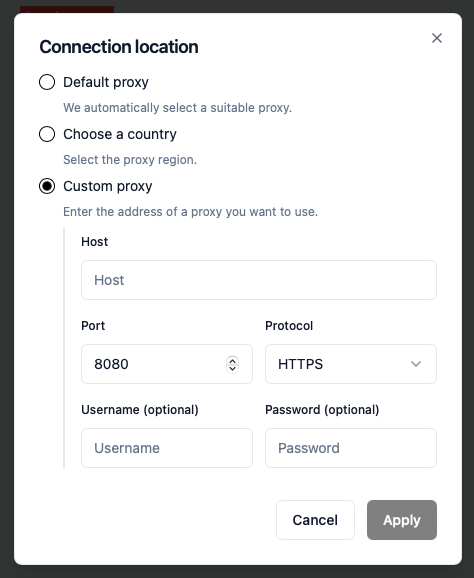
'You can also let users choose their connection location or proxy configuration directly in the Hosted Authentication flow by setting:
config.global.allow_user_proxy_override = true→ shows a proxy configuration form
config.global.allow_user_country_override = true→ shows a country selection list for providers that use automatic proxies such as LinkedIn, WhatsApp, and Instagram.
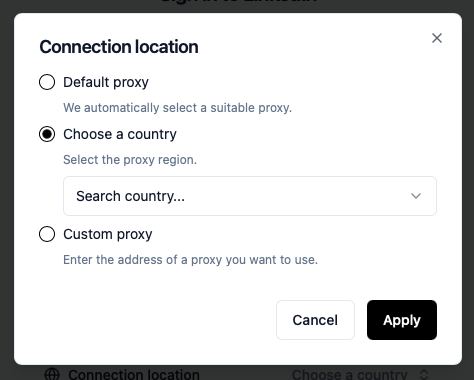
If either option is enabled, the corresponding field will appear at the bottom of authentication wizards.

Request example to generate an hosted authentication session with both options enabled:
const { data } = await hosted_auth.createAuthLink({
  ...request_options,
  throwOnError: true,
  body: {
    providers: '*',
    expires_on: new Date(Date.now() + 10 * 60_000).toISOString(),
    redirect_uri: 'https://myapp.com/link-account/callback',
    config: {
      global: {
        allow_user_proxy_override: true,
        allow_user_country_override: true,
      },
    },
  },
});curl --request POST \
--url https://api.unipile.com/v2/auth/link \
--header 'X-API-KEY: api-key' \
--header 'accept: application/json' \
--header 'content-type: application/json' \
--data '
{
"config": {
"global": {
"allow_user_proxy_override": true,
"allow_user_country_override": true
}
},
"providers": "*",
"redirect_uri": "https://myapp.com/link-account/callback",
"expires_on": "2030-12-31T23:59:59.999Z"
}
'For more details on custom proxies, automatic proxies, and the lookup order used to determine which proxy is applied, see our Proxy guide.
Wait for Initial sync
This section only matters for providers that support initial sync.
By default, Hosted Authentication redirects users to your application as soon as the authentication flow completes, without waiting for the Initial Sync to finish.
If your application requires complete historical data to function correctly, you have two options, as mentioned in the Initial Sync guide:
- Track the initial sync using webhooks, or
- Delay the redirection from Hosted Auth until the initial sync is completed.
To delay the redirection, set config.global.wait_initial_sync to true. When enabled, users will remain on a “sync in progress” screen until the initial sync finishes.
{
  "config": {
    "global": {
      "wait_initial_sync": true
    }
  }
}
Setup a custom domain
By default, your users will be redirected to https://auth.unipile.com. Follow this guide if you want to use your own domain instead (e.g. https://auth.yourapp.com).
1. Configure and enable the domain
Follow Custom Domains to:
- Create a CNAME such as
auth.yourapp.compointing toauth.unipile.com - Verify the domain for your organization
- Enable the verified domain for the application creating the Hosted Auth link
2. Generate links with the custom domain
Now, when using Create Auth Link, specify domain.
const { data } = await hosted_auth.createAuthLink({
  ...request_options,
  throwOnError: true,
  body: {
    expires_on: new Date(Date.now() + 10 * 60_000).toISOString(),
    redirect_uri: 'https://myapp.com/callback',
    providers: '*',
    domain: 'auth.yourapp.com',
  },
});response = hosted_auth_api.create_auth_link(
{
'expires_on': '2030-12-31T23:59:59.999Z',
'redirect_uri': 'https://myapp.com/callback',
'providers': '*',
'domain': 'auth.yourapp.com'
}
)Updated about 13 hours ago