
Link accounts
Learn how to link a LinkedIn account with Unipile API.
How does it work ?
To link a LinkedIn account with Unipile, you can offer users two authentication methods:
- Using credentials (email & password) - A new session is created for Unipile and will appear in the Active sessions list in LinkedIn settings. This session can be revoked at any time by ending it from LinkedIn. When revoked, the account status changes to
disconnected(🟡 Authentication required). - Using cookies (li_at & li_a) - The session is shared from an existing browser session where the cookies were collected. If the user logs out from that browser, the account will become
disconnected(🟡 Authentication required).
RecommendationsIf you want to use Recruiter features, it's recommended to authenticate accounts using cookies for better compatibility.
LinkedIn products
LinkedIn products represent the different LinkedIn services that can be connected to an account through Unipile. Each product provides access to its own API methods and real-time events.
products value | LinkedIn product | Description |
|---|---|---|
classic | The personal social network, including features available through LinkedIn Premium subscriptions. | |
company | LinkedIn Pages | The company pages managed by the user. |
recruiter | LinkedIn Recruiter | LinkedIn's recruiting platform. |
sales_navigator | LinkedIn Sales Navigator | LinkedIn's sales intelligence platform. |
Activating a product gives the account access to the data, API methods, and real-time events associated with that product. When a product is deactivated or not accepted by the user, API methods that require it return 403 api/insufficient_permissions. Its real-time events are not received by Unipile, so the corresponding webhook events are not emitted.
The products available for activation depend on the services and subscriptions available on the LinkedIn account.
Product activation is configured during authentication through the products and allow_product_selection fields. Their behavior depends on the authentication flow. Follow the Hosted Authentication and Custom Authentication sections below to configure them correctly.
Accounts with both Recruiter and Sales Navigator
recruiterandsales_navigatorcannot be connected on the same Unipile account. Theclassicandcompanyproducts can be connected alongside either one. To use both Recruiter and Sales Navigator, connect the LinkedIn account twice: one Unipile account with Recruiter and another with Sales Navigator.
Some LinkedIn accounts have access to both Recruiter and Sales Navigator. The products detected during authentication depend on the authentication method:
- Credentials authentication: Unipile can detect both products. When the product selection screen is displayed, both Recruiter and Sales Navigator are offered, and the user can choose which one to activate. They cannot activate both on the same Unipile account.
- Cookie authentication: the premium
li_acookie is associated with either the Recruiter session or the Sales Navigator session. Only the product matching the provided cookie can be detected and displayed for selection. The other premium product is not displayed, even if the LinkedIn account also has access to it.
For example, if the user provides a Recruiter li_a cookie, Recruiter is offered for activation but Sales Navigator is not. To connect the other premium product, authenticate the LinkedIn account separately with the li_a cookie associated with that product.
Link with Hosted Authentication
To link LinkedIn accounts using Hosted Authentication, follow the Authenticate with Hosted Auth guide.
At the Create Auth Link step:
- Set
linkedinas theproviders. - By default, Hosted Authentication only displays the credentials method. To also allow the cookies method, include it in the
allow_methodsfield of the LinkedIn configuration.
The products field defines which LinkedIn products the user is allowed to activate. It is optional and allows every supported product by default. Only products that are both allowed by this field and available on the LinkedIn account can be activated.
Hosted Authentication displays a product selection screen after the LinkedIn session is authenticated. This behavior corresponds to allow_product_selection: true, which is the default for Hosted Authentication. Set it to false to activate the available products automatically. When credentials authentication detects both Recruiter and Sales Navigator, Sales Navigator is activated and Recruiter is excluded if selection is automatic.
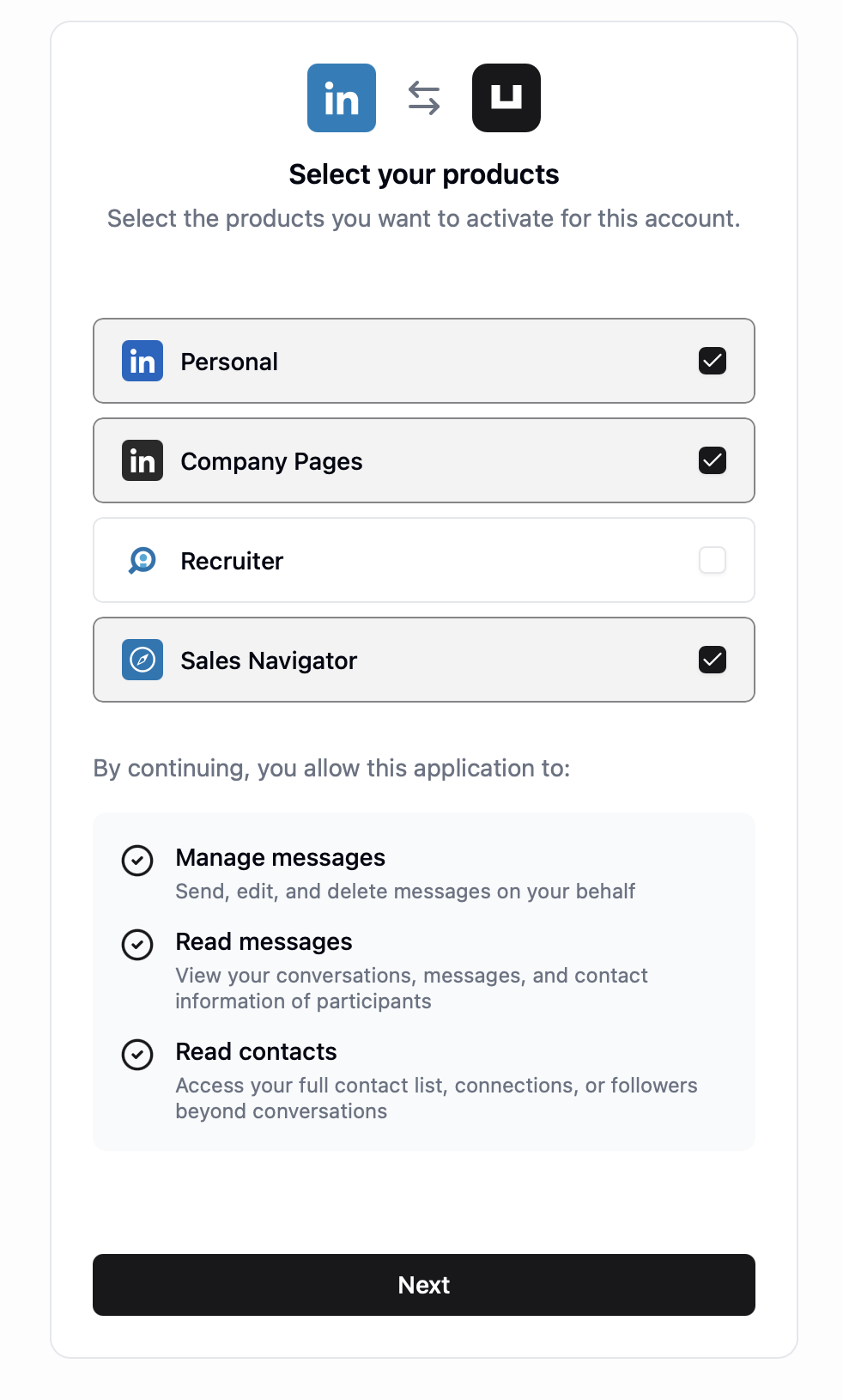
The consent screen for an account with all products when allow_product_selection=true
If the selected Recruiter or Sales Navigator product gives access to several contracts, Hosted Authentication displays an additional screen where the user chooses the contract to connect. When only one contract is available, it is selected automatically. Learn how contracts work after authentication in Manage LinkedIn contracts.
When reconnecting an existing account, omit products to keep the products already connected. Provide it to expand or narrow the products that can be activated.
Server code
// ...

const response = await unipile
  .hostedAuth
  .createAuthLink({
    providers: "linkedin",
    expires_on: dayjs().add(10, 'minutes').toISOString(),
    redirect_uri: "https://myapp.com/link-account/callback",
    config: {
      linkedin: {
        allow_methods: ["credentials", "cookies"],
      }
    }
  });

// ...
# ...
response = hosted_auth_api.create_auth_link(
{
"providers": "linkedin",
"expires_on": "2025-05-05T00:00:00.000Z",
"redirect_uri": "https://myapp.com/link-account/callback",
"config": {
"linkedin": {
"allow_methods": ["credentials", "cookies"],
}
},
}
)
# ...curl --request POST \
--url https://api.unipile.com/v2/auth/link \
--header 'X-API-KEY: api-key' \
--header 'accept: application/json' \
--header 'content-type: application/json' \
--data '
{
"providers": "linkedin",
"redirect_uri": "https://myapp.com/link-account/callback",
"expires_on": "2025-05-05T00:00:00.000Z",
"config": {
"linkedin": {
"allow_methods": ["credentials", "cookies"]
}
}
}
'Link with Custom Authentication
To build a custom authentication wizard for LinkedIn Accounts, follow the Credentials Flow guide.
The products field defines which LinkedIn products are allowed to be activated. It is optional and allows every supported product by default. Only products that are both allowed by this field and available on the LinkedIn account can be activated.
In Custom Authentication, allow_product_selection defaults to false. You can omit config to activate the available products automatically. When credentials authentication detects both Recruiter and Sales Navigator, Sales Navigator is activated and Recruiter is excluded if selection is automatic.
When reconnecting an existing account, omit products to keep the products already connected. Provide it to expand or narrow the products that can be activated.
Client code
const data = await startAuthIntent({
  provider: "linkedin",
  credentials: {
    username,
    password,
  },
});
To let the user choose which available products to connect, set allow_product_selection to true. You can optionally combine it with products to restrict the choices:
const data = await startAuthIntent({
  provider: "linkedin",
  credentials: {
    username,
    password,
  },
  config: {
    allow_product_selection: true,
    products: ["classic", "company", "sales_navigator"],
  },
});
After any LinkedIn verification steps have been completed, authentication returns a CONSENT_SCREEN checkpoint containing the products available on the account and allowed by products.
{
  "object": "AuthenticationCheckpoint",
  "intent_id": "acc_123456789",
  "checkpoint": {
    "type": "CONSENT_SCREEN",
    "products": [
      { "id": "classic", "display_name": "Personal" },
      { "id": "company", "display_name": "Company Pages" },
      { "id": "sales_navigator", "display_name": "Sales Navigator" }
    ]
  }
}
Display the returned options instead of hard-coding them. Then call Solve a Checkpoint with the selected product IDs serialized as a JSON array in code:
async function submitProducts(
  intent_id: string,
  selectedProductIds: string[],
) {
  return solveCheckpoint({
    intent_id,
    code: JSON.stringify(selectedProductIds),
  });
}
At least one product must be selected. recruiter and sales_navigator cannot be selected together.
When the selected Recruiter or Sales Navigator product gives access to several contracts, authentication returns a CONTRACT_SELECTION checkpoint before completing the connection. This checkpoint can be returned directly when products are activated automatically, or after solving CONSENT_SCREEN when the user selects the products.
The checkpoint.contracts array contains the available contract id and name values. Display these contracts to the user, then call Solve a Checkpoint with the selected contract id in code:
{
  "object": "AuthenticationCheckpoint",
  "intent_id": "acc_123456789",
  "checkpoint": {
    "type": "CONTRACT_SELECTION",
    "contracts": [
      { "id": "123456", "name": "Recruiter contract" },
      { "id": "789012", "name": "Recruiter contract - Europe" }
    ]
  }
}async function submitContract(
intent_id: string,
selectedContractId: string,
) {
return solveCheckpoint({
intent_id,
code: selectedContractId,
});
}When only one contract is available, it is selected automatically and this checkpoint is not returned.
After authentication, use the contract endpoints to list or switch the active contract. See Manage LinkedIn contracts.
To let users authenticate with cookies, create a form that takes the main cookie li_at (access_token) and a premium cookie li_a (premium_access_token) required to enable Sales Navigator and Recruiter. Then, forward the values the same way instead of username and password.
Client code
const data = await startAuthIntent({
  provider: "linkedin",
  credentials: {
    access_token,
    premium_access_token,
  },
});
Browser extension workflow example
If your application has a browser extension, you can benefit from users' LinkedIn session to make an authentication-less connection of their account.
Collect authentication data
Using your browser extension, collect the following :
li_at(andli_afor premium products) cookies from the logged in LinkedIn session- The User agent of the current browser
- The IP address (for Unipile, use a country-based IP)
Send all this data to your backend at regular intervals, so you can always have the most up-to-date picture of the user's LinkedIn session.
Connect the account to Unipile
Once you receive the first data collection, you can initiate the account connection to Unipile with our Custom authentication using the cookies method. Save the account ID.
It may happen that the account gets disconnected during its lifecycle. If you get such webhook notification, try to reconnect the account to Unipile with the last recorded data collection from the LinkedIn session, and the corresponding account ID.
If reconnection fails, retry every hour for 4 hours (to accommodate LinkedIn downtimes), allowing users time to reconnect and use their extension naturally.
Updated about 1 month ago