
Transfer Accounts & Subscription
This guide explains how to transfer your existing V1 subscription to V2 and optionally migrate your accounts and settings.
Important notice about transferring your V1 subscription to V2You can transfer your existing V1 subscription to use both V1 and V2 under a unified billing model.
We do not add the usage of both versions together. Instead, we bill only the highest usage peak between V1 and V2. This allows you to migrate gradually without paying twice for accounts that are connected to both versions.
For example, if your usage peaks at 100 accounts on V1 and 80 accounts on V2, you are billed for 100 accounts, not 180.
If you choose not to transfer your subscription, you can maintain separate subscriptions for V1 and V2, with billing split across two separate subscriptions and invoices.
How to transfer subscription and accounts ?
- Sign up on v2 even if you already have an account on v1 : https://dashboardv2.unipile.com/register
- Create your Organization
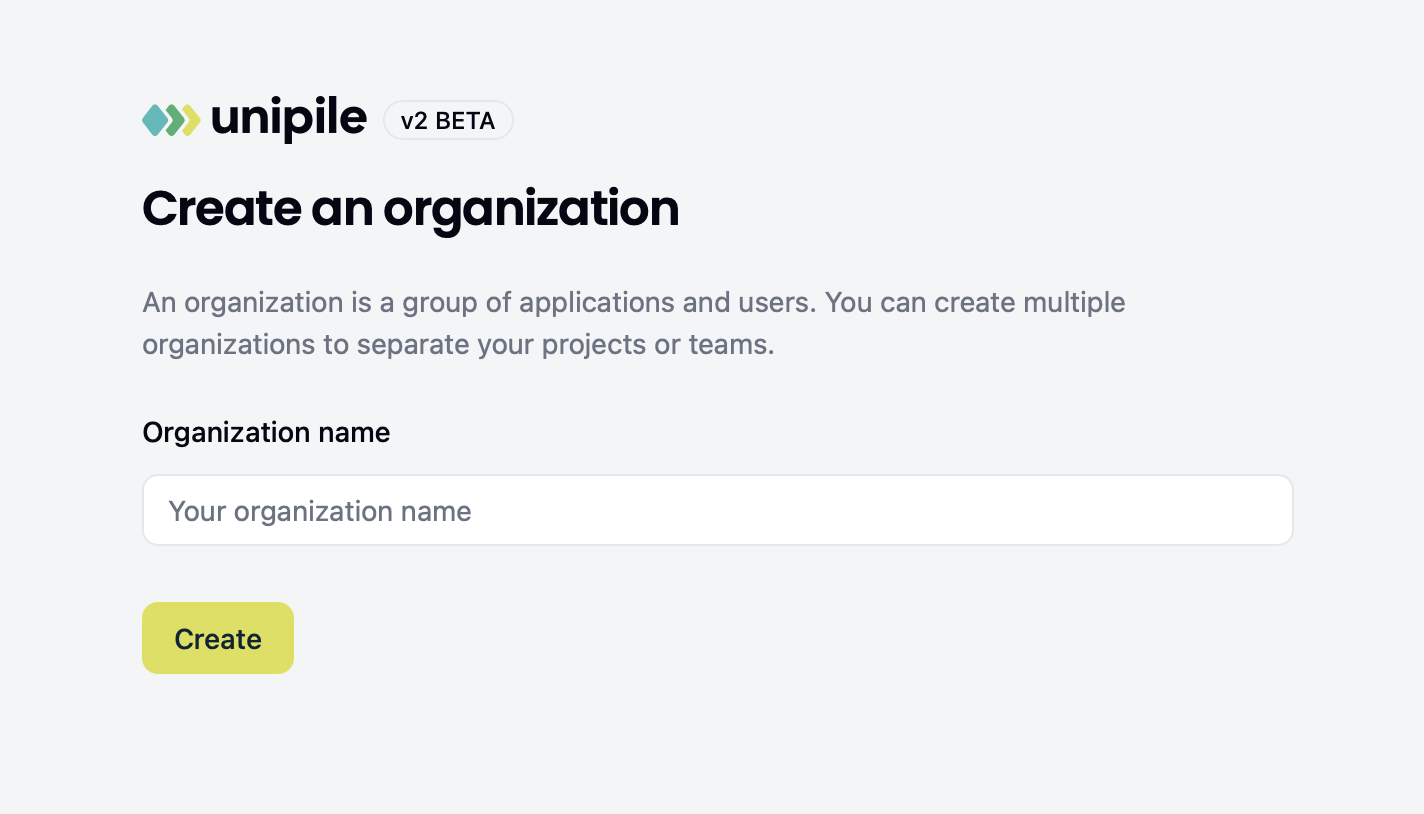
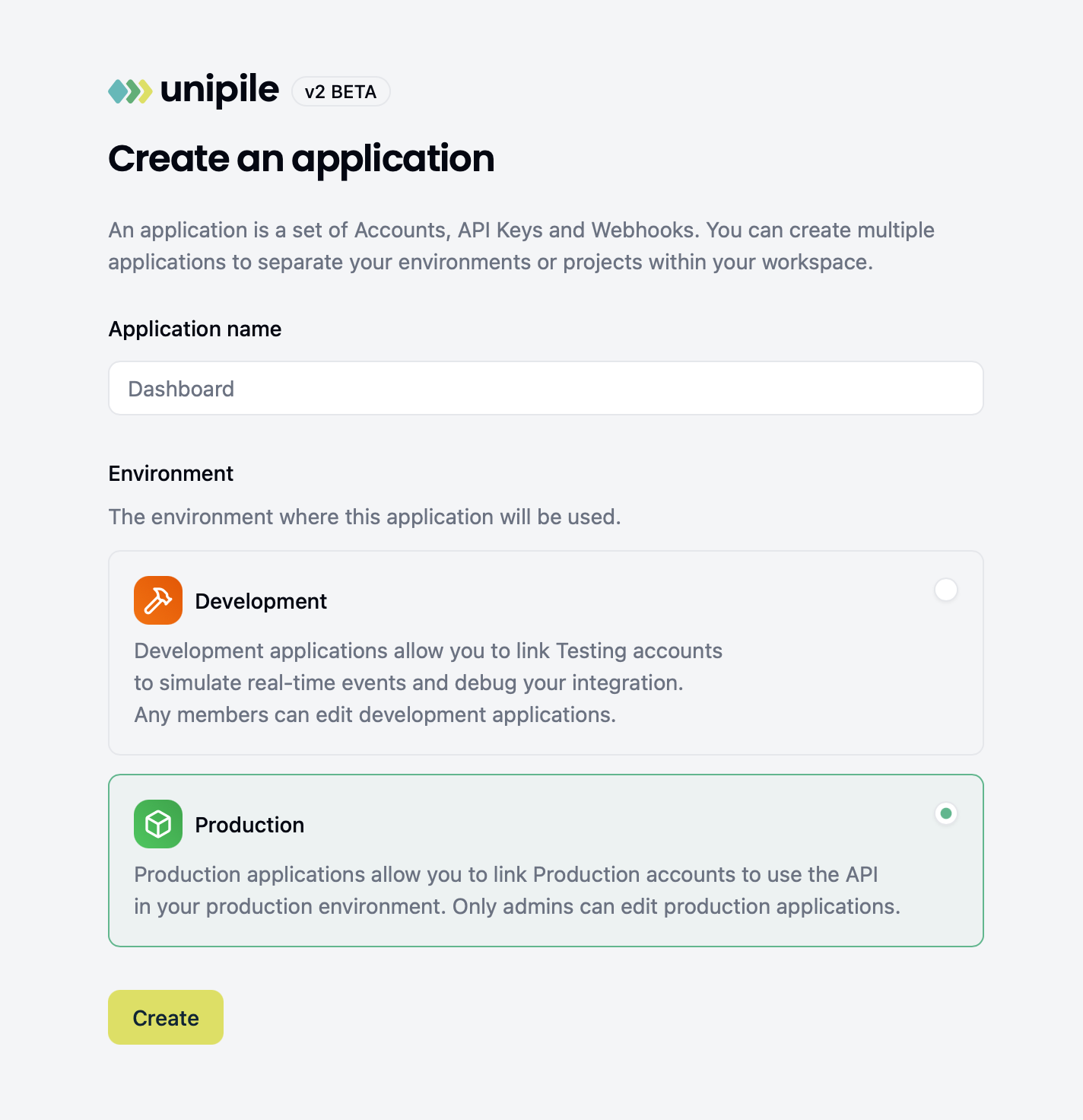
- Create a new Application
- In that application, go to API Keys > Create Service API Key, and name it Migration for example.
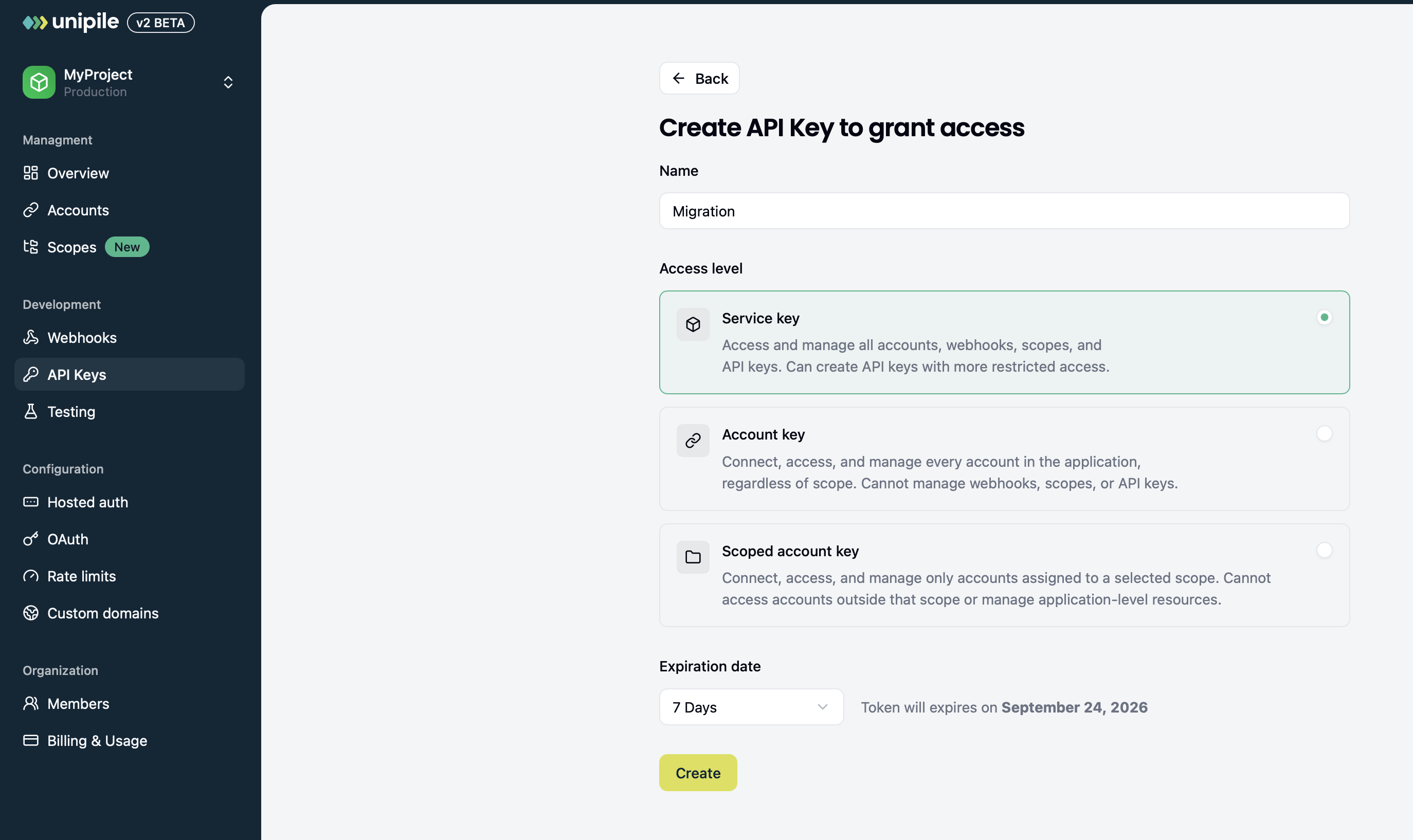
- Copy the given token (it will be usefull in step 9)
- Return to v1 : https://dashboard.unipile.com/login
- Click on Migrate to V2
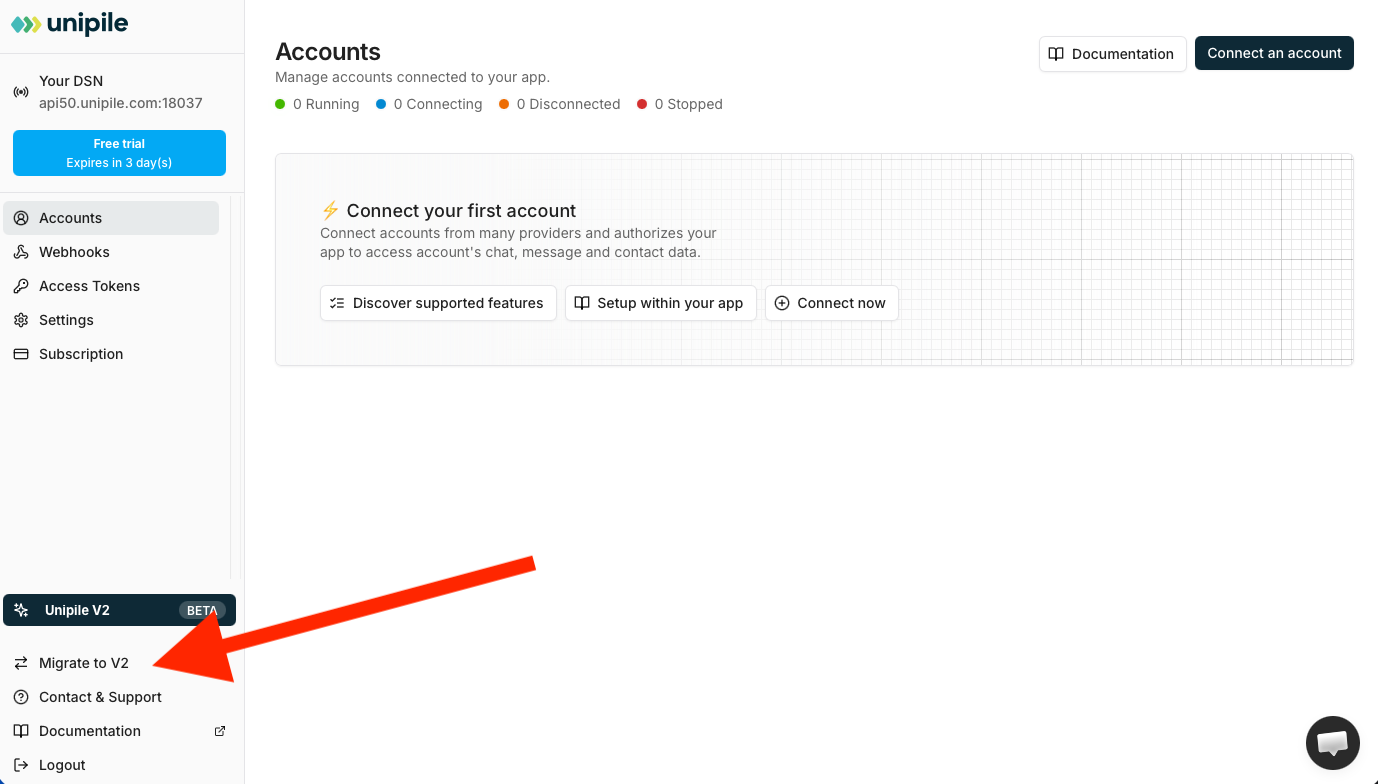
- Click continue then select what do you want to transfer to v2. Either the subscription only so you can work from scratch, or subscription with accounts and settings (this can be useful if you have a lot of accounts)
- Paste your V2 Service API Key and click Start copy.
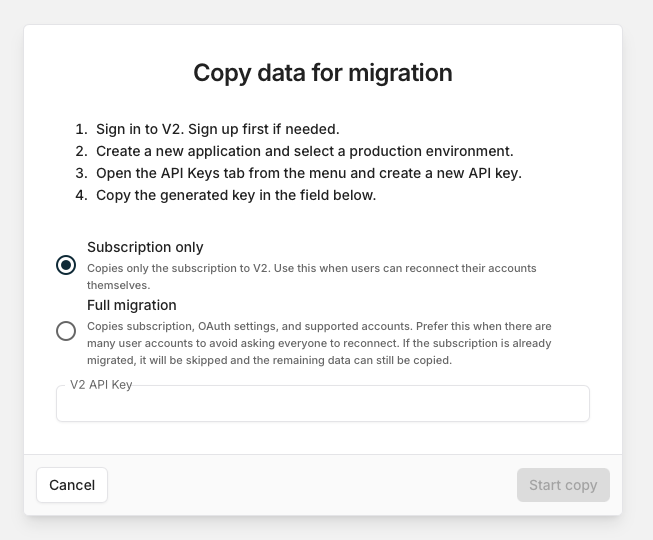
You can rerun the migrationYou can start the migration again as many times as needed. If you have already migrated your accounts, a later run copies only the accounts that have not been copied to V2 yet, including newly connected accounts.
Account IDs and webhooksMigrated accounts have different IDs in V2 because V2 uses a different ID format. To find the corresponding V1 account ID, check the account's
metadata.v1_account_idfield in V2.Webhooks are not copied during migration. Recreate your webhooks manually in V2.
Migrating an account is a copy, not a moveV1 and V2 are not separate connection environments. When you migrate an account, it is connected in V2 while the existing account remains connected in V1. The same provider account can therefore be connected to both versions at the same time without any issue.
WhatsApp accountsExisting sessions are preserved during the migration, except for WhatsApp accounts. WhatsApp accounts must be reconnected in V2.
- You should now see your subscription status to "Subscribed" in your Billing & Usage section of v2, and accounts visible in the Accounts list.
Updated about 13 hours ago